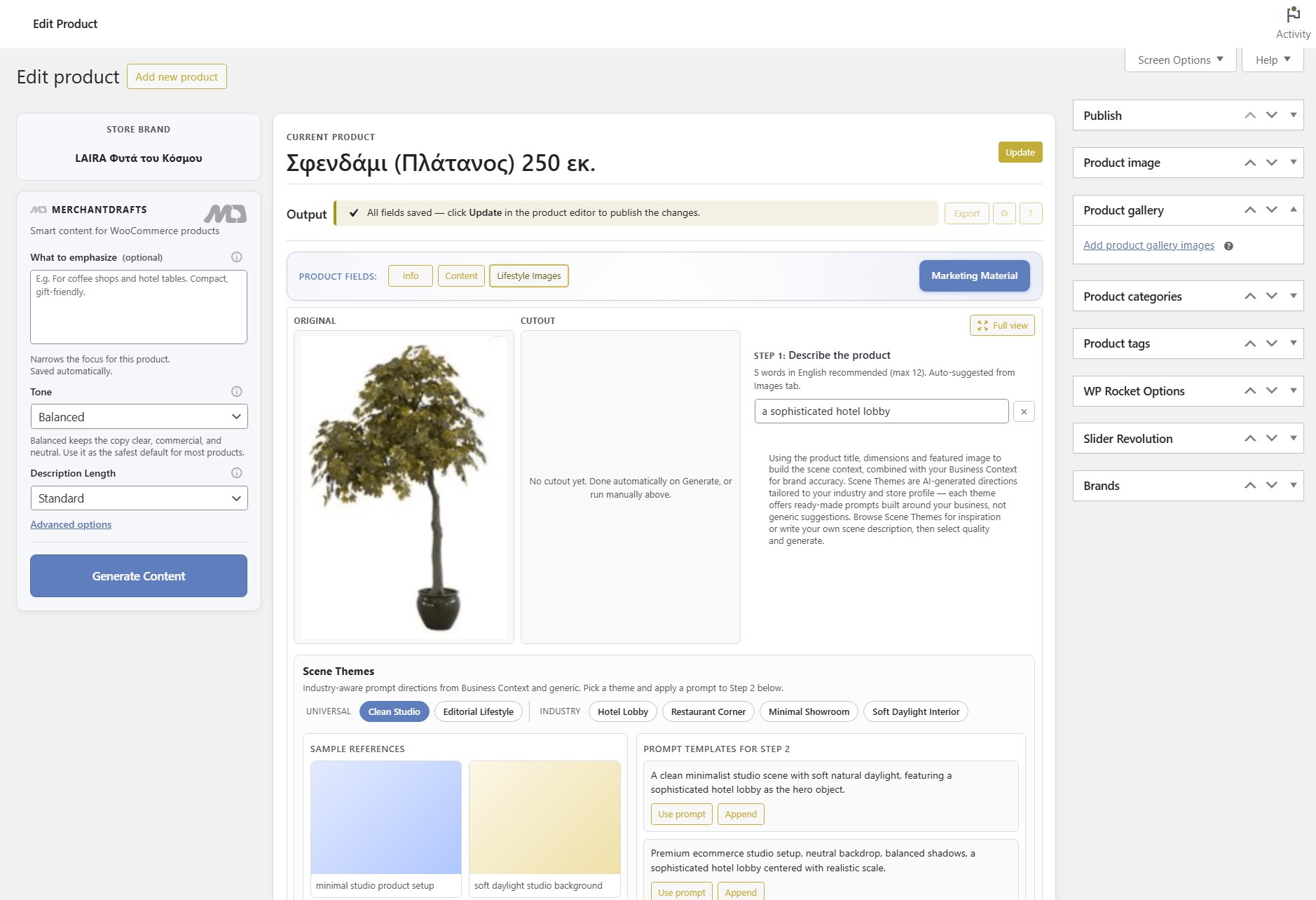
Brand voice
Positioning, tone baseline, and audience
Describe who your store is, who it sells to, and how it should sound. This feeds into the prompt as the primary brand voice instruction for every generation run.
Business Context is where you tell MerchantDrafts what your store is, who it sells to, and how it should sound. It is the dominant prompt layer — set once in Settings and applied automatically to every product, category, and manufacturer generation without any per-run configuration. Writing Pattern, Tone, and product-level context layers refine the output further, but Business Context provides the baseline that keeps copy consistent across the entire catalogue.
01
Open MerchantDrafts Settings and write a short description of your brand — what you sell, who you sell to, and what your positioning is.
02
Every generation run — products, categories, manufacturers — reads Business Context without requiring per-run setup. No re-entering context each time.
03
Writing Pattern, Tone, Category Context, and Manufacturer Description add specificity. Business Context stays as the dominant baseline throughout.
On this page
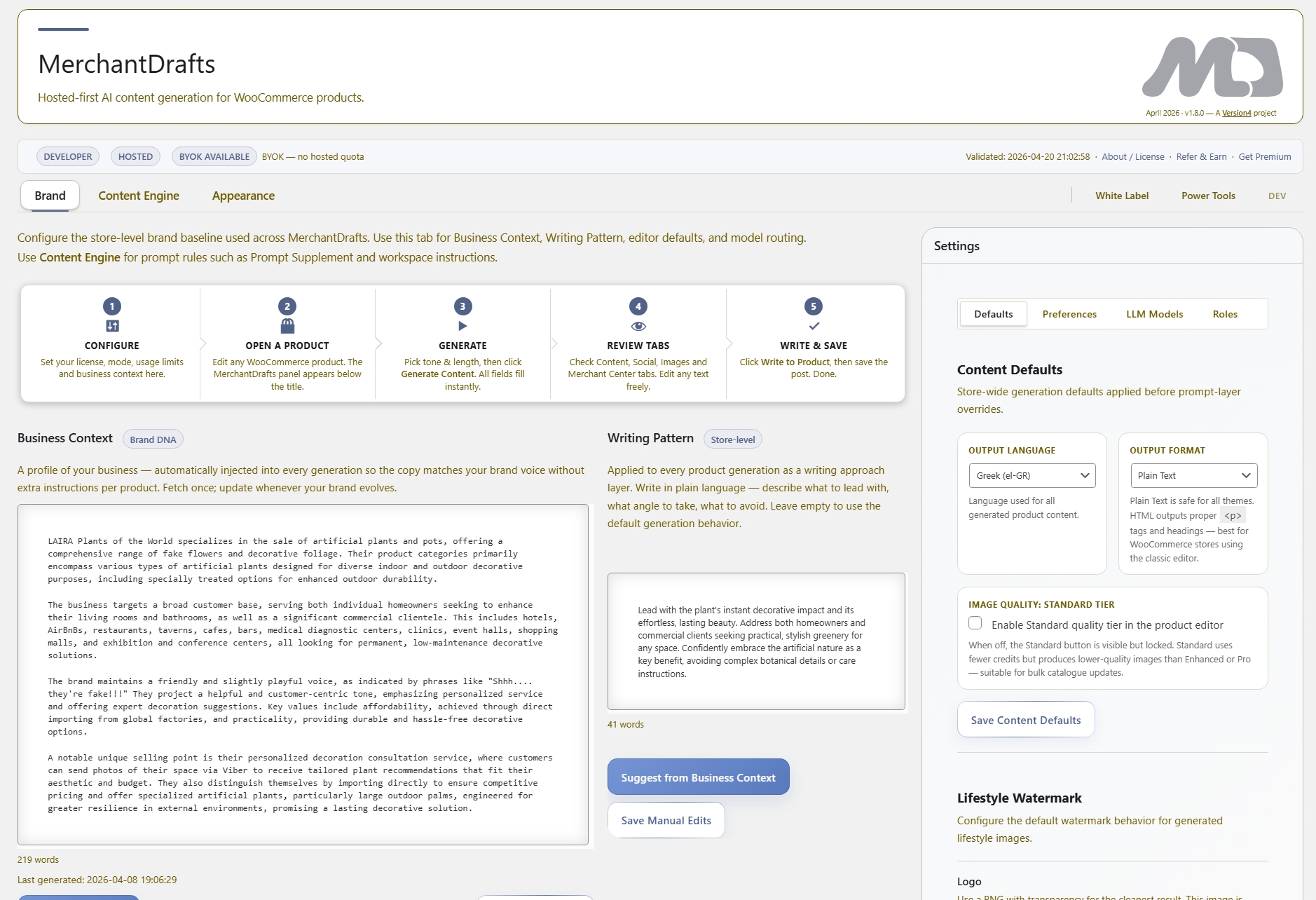
Business Context is not a per-product field. You write it once in MerchantDrafts Settings and it feeds into every generation run — product copy, category descriptions, manufacturer pages, and marketing material — without any manual repetition. The other context layers (Writing Pattern, Tone, Category Context, Manufacturer Description) add specificity on top of Business Context, not instead of it.
Brand voice
Describe who your store is, who it sells to, and how it should sound. This feeds into the prompt as the primary brand voice instruction for every generation run.
Catalogue-wide application
Business Context is not scoped to one workspace. It applies automatically to product copy, category descriptions, manufacturer pages, and marketing material generation.
Set once
Write it once in MerchantDrafts Settings and every subsequent generation run inherits it automatically. No per-product or per-batch configuration needed.
Your brand name, the store's market position, the primary customer type, and any broad tone or register instructions the model should follow by default.
When Business Context and a product-level layer appear together in a prompt, Business Context acts as the wider frame. Product-level context narrows within it, not over it.
Because every run reads the same Business Context, product copy written today sounds like product copy written next month without extra effort.
If your positioning shifts or you launch a new line with a different audience, update Business Context in Settings and all future generation runs pick up the change.
Before
After
Business Context is the frame. Other layers narrow within it.
Writing Pattern, Tone, Category Context, and Manufacturer Description refine output further — but Business Context sets the brand baseline that all of them operate inside.
Business Context removes the manual step of re-entering brand information each time you generate. Set it once and it carries across every workspace and every run.
01
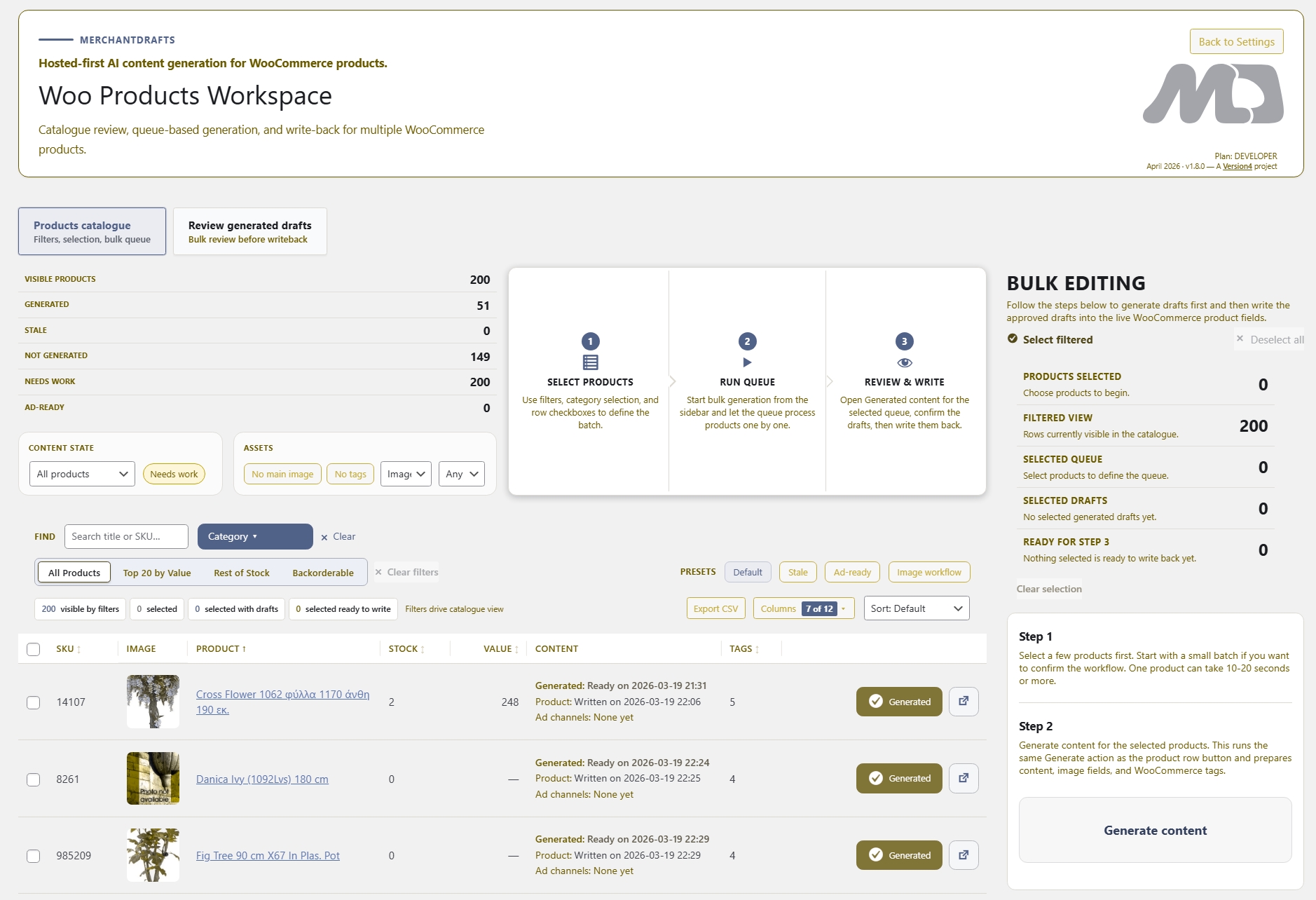
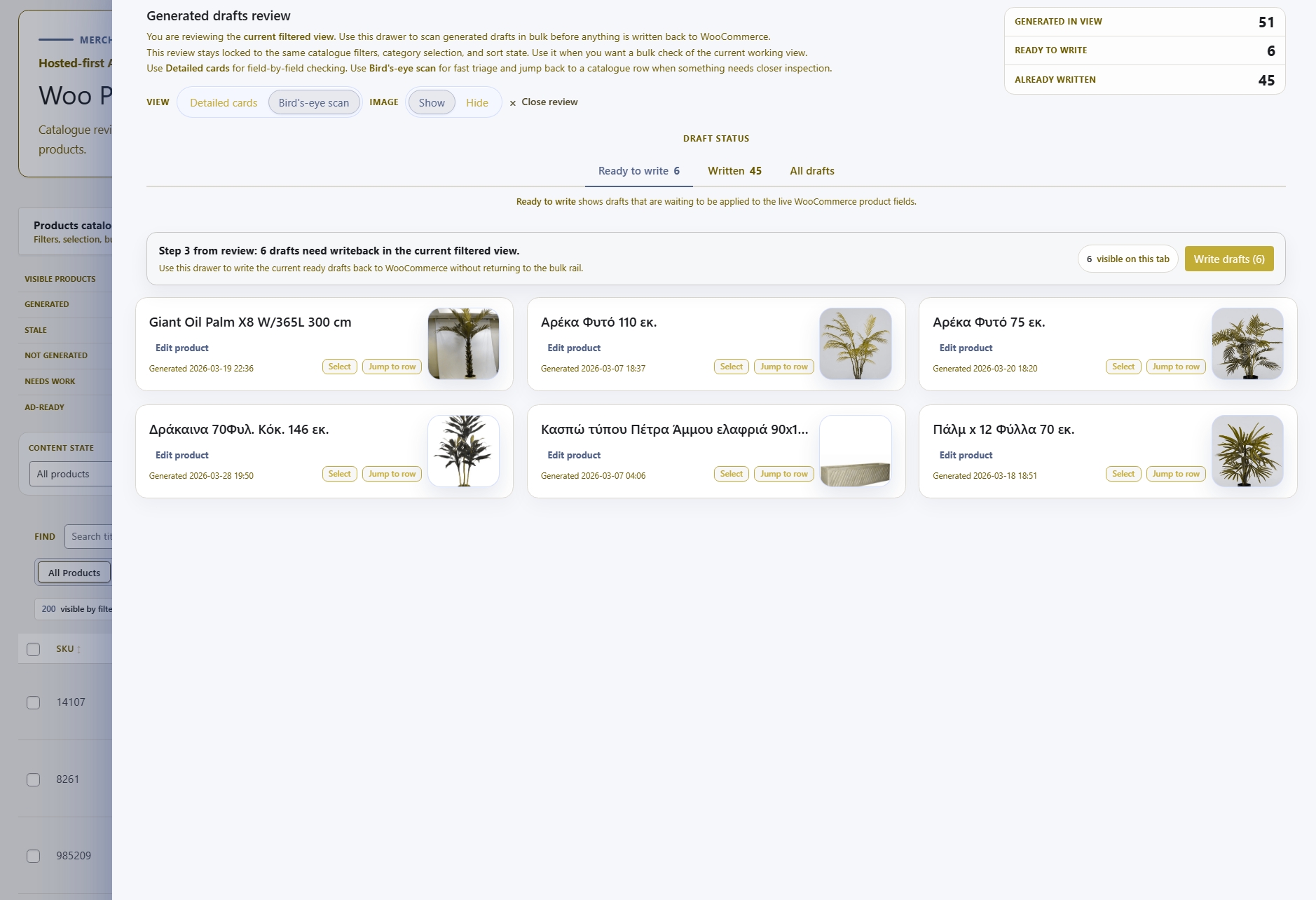
Write Business Context once in Settings and every generation run across products, categories, and manufacturers inherits it automatically without any per-run input.
02
Because every run reads the same context, copy generated today and copy generated next month use the same brand baseline — no drift, no re-alignment needed.
03
Products, Categories, Manufacturers, and Marketing Material all draw from Business Context. One update in Settings flows to all of them.
04
Product-level context (Category Context, Manufacturer Description, Emphasis) adds specificity within the frame Business Context sets — not instead of it.
05
Operators do not need to re-enter positioning or audience instructions each time. Business Context is already in the prompt before generation starts.
06
When positioning shifts or a new product line has a different audience, update Business Context once and all future runs pick up the change immediately.
Business Context is the base layer. These are the surfaces that build on top of it or use it directly during generation.
Intelligence
Set sentence rhythm, vocabulary register, and structure rules that layer on top of Business Context to define the store writing style.
Content
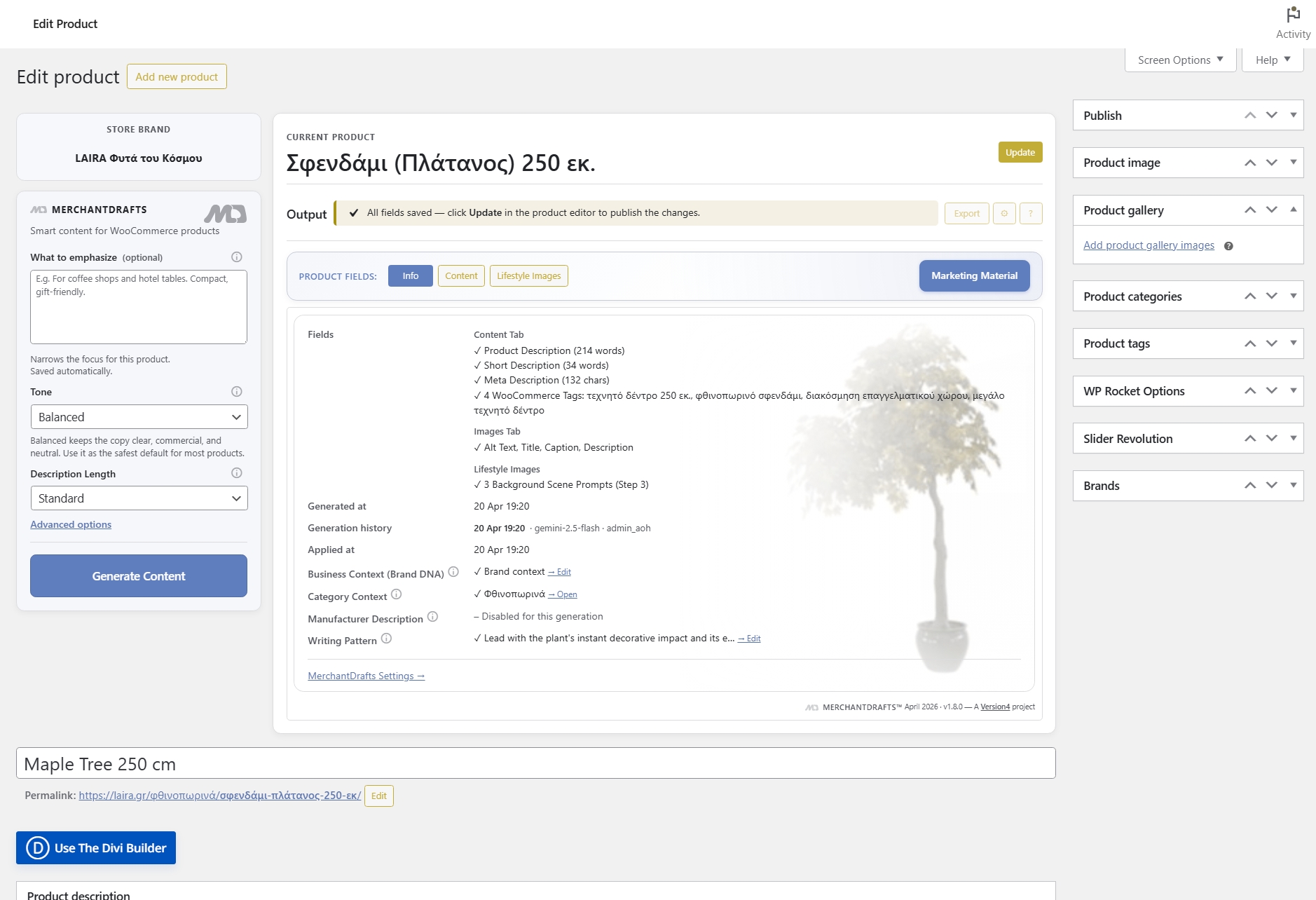
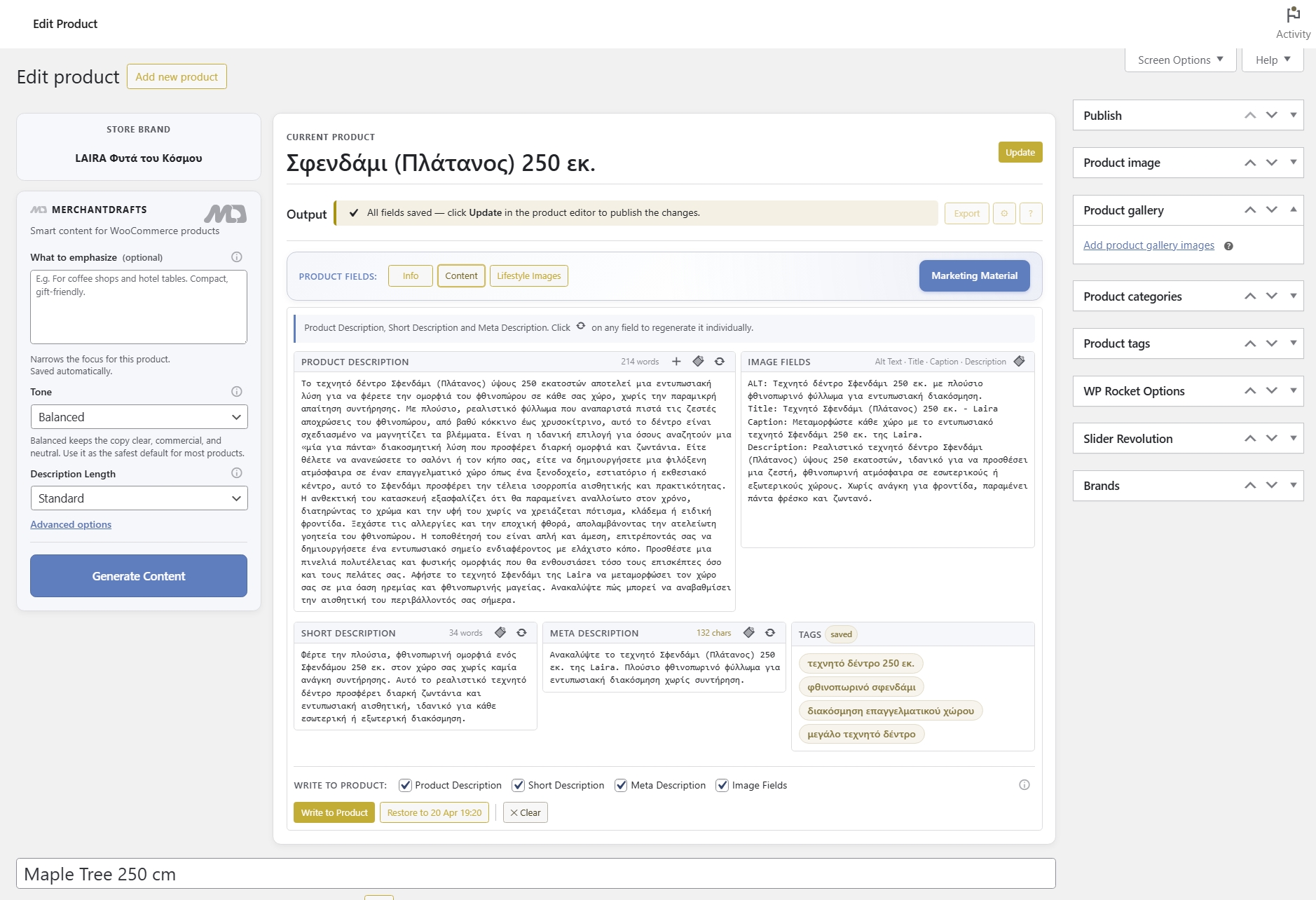
The left-side panel where Business Context, Writing Pattern, Tone, and product-specific layers are combined before generation runs.
Content
The product content workflow where Business Context is applied to generate titles, descriptions, metadata, and tags.
Operate
The workspace where Business Context scales across the full catalogue in batch generation runs with review before writeback.